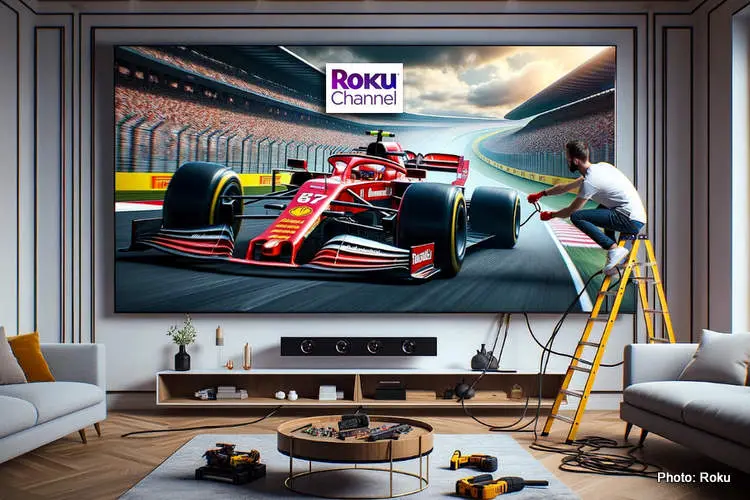
The world of Formula 1 racing is exhilarating, and for avid fans, having access to F1 TV is paramount. If you own a Roku device, you're in luck!
This article will walk you through the process of installing and setting up F1 TV on Roku, so you can catch every thrilling moment of the races.
What is F1 TV? F1 TV is like a popular streaming service for all things Formula 1. It doesn't just show the races, but also gives you special stuff, like behind-the-scenes looks, in-depth info, and exclusive content. It's a must-have for any true F1 enthusiast, providing an immersive experience that goes beyond what traditional broadcasts offer.
How to Install F1 TV on Roku
Follow these steps to start enjoying the action today:
- Power Up Your Roku Device: Ensure your Roku device is connected to your TV and is powered on.
- Navigate to the Roku Home Screen: Use your Roku remote to navigate to the home screen.
- Access the Roku Channel Store: From the home screen, scroll down and select "Streaming Channels" to open the Roku Channel Store.
- Search for F1 TV: In the Channel Store, use the search function to look for "F1 TV." Once you find it, select it to view more details.
- Add the Channel: On the F1 TV details page, click "Add Channel" to download and install the app on your Roku device.
- Launch F1 TV: After installation, return to the Roku home screen and locate the F1 TV app. Click on it to launch.
- Log In or Create an Account: If you already have an F1 TV account, log in using your credentials. If not, you can sign up for a new account directly through the Roku app.
- Start Watching: Once you've logged in, you're all set to begin streaming thrilling F1 content on your Roku device.
What Other Devices Can I Watch F1 TV On?
While Roku is a fantastic platform to enjoy F1 TV, you're not limited to just one device. F1 TV is compatible with a range of other devices, including smartphones, tablets, smart TVs, and gaming consoles. This means you can seamlessly switch between devices to catch the action wherever you are.
Using VPN for Enhanced Access
If you're a fan who lives in a place where it's hard to watch F1 TV, using something called a Virtual Private Network (VPN) can really help. A VPN lets you go around the rules about where you can watch from, so you can see everything F1 TV has to offer. It's like a secret trick to unlock all the F1 TV stuff! Having chosen the best VPN for Roku, simply connect to a server in a supported region, and you're ready to enjoy uninterrupted F1 action.
Adding F1 TV on Roku Using Roku Website
If you prefer to add channels via the Roku website, follow these steps:
- Begin by visiting the official Roku website and logging into your Roku account.
- Once logged in, navigate to the "Channel Store" from the dashboard.
- Utilize the search function to locate the "F1 TV" app within the Channel Store.
- Click on F1 TV, then select "Add Channel" to integrate it into your Roku account.
- Return to your Roku device and perform a system update to ensure the new channel is successfully added.
- Now, locate the F1 TV app on your Roku device and launch it.
- Log in using your existing F1 TV credentials or create a new account if you don't have one.
- With everything set up, you're now ready to start streaming captivating F1 content on your Roku device. Enjoy!
Getting F1 TV on Roku Via Roku Mobile App
If you're on the go and prefer using the Roku mobile app, here's how to add F1 TV:
- Open the Roku Mobile App: Launch the Roku mobile app on your smartphone or tablet.
- Access the Channel Store: From the app's main menu, tap "Channels."
- Search for F1 TV: Use the search function to find "F1 TV" in the Channel Store.
- Add Channel to Roku Account: Tap on F1 TV, then select "Add Channel" to add it to your Roku account.
- Refresh Your Roku Device: Return to your Roku device and perform a system update to ensure the new channel is added.
- Launch F1 TV: Locate the F1 TV app on your Roku device and launch it.
- Log In or Create an Account: Log in with your existing F1 TV credentials or create a new account if you don't have one.
- Start Watching: You're now all set to start streaming F1 content on your Roku device.
Bottom Line
Gaining access to F1 TV on your Roku device opens up a world of thrilling Formula 1 action and exclusive content. By following the simple steps outlined in this article, you can seamlessly install and set up the F1 TV app. Remember, F1 TV isn't limited to Roku alone; it's compatible with various devices, allowing you to catch the action wherever you are.
Additionally, if you face geographical restrictions, a Virtual Private Network (VPN) can be a valuable tool to unlock the full potential of F1 TV. Whether you choose to add F1 TV through the Roku website or the mobile app, you're now equipped to enjoy uninterrupted F1 excitement. Get ready to dive into the heart of Formula 1 racing!
Latest News











Loading